Your WooCommerce store enjoys a top ranking for high-intent keywords that drive revenue every month. To cope with growing traffic and clientele, you decide to migrate from WooCommerce to Shopify. The shift looks fine with all customer data, products, and categories in place, but something goes haywire. Organic sessions drop visibly, leaving you puzzled.
Several brands still take migrating their online stores lightly, thinking it’s something like switching email providers. However, e-Commerce platform migration touches every part of your business: the products, customer orders, blog posts, SEO rankings, etc. Many brands choose to migrate to Shopify due to plugin issues, performance caps, etc., but the migration is no cakewalk.
Migrating platforms without a clear checklist and SEO plan can lead to multiple risks. Poor execution can lead to broken links, diminished visibility, customer trust loss, and reduced revenue. To take an online store from WooCommerce to Shopify, you need a solid plan and the assistance of a veteran e-commerce web development service provider.
We at BrandLoom are the agency that has successfully assisted numerous prestigious domestic and overseas clients with E-commerce web development and migration.
Pre-Migration Planning: Audit, Backup & Initial Setup
For a successful migration from WooCommerce to Shopify, you need a detailed audit, planning, and taking a backup of the site is a must, too. Such a platform-wide migration involves strategically aligning your products, customer data, design, and SEO before anything goes live on the new platform.
Auditing your Existing WooCommerce Store
Performing an in-depth audit of your WooCommerce store is a must before planning a migration, according to Seahawk. This includes checking everything like product listings, categories, customer accounts, order history, blog posts, and any custom content. Many Shopify apps can replicate WooCommerce functionality, but you must make a list of what you need to avoid hassles later.
This audit also helps identify issues in product data quality, such as incomplete titles, missing image alt text, and inconsistent pricing. Fix all these aspects before getting into WooCommerce to Shopify migration.
Taking a Backup
Export all essential data from your WooCommerce store into CSV files, including products, categories, customers, orders, and blog posts. You can use plugins to export product and customer data.
Pre-Configuring Shopify Basics
- First, pick an appropriate Shopify plan that matches your expected sales volume, number of staff accounts, etc. Not all plans will have the features you need.
- Create your Shopify account and configure basics like currency, taxes, and shipping zones.
- Always go for an SEO-friendly, responsive theme that aligns with your brand image. Also, preview how the product categories and pages will look after the store goes live.
- If you sell subscriptions, digital products, or products with multiple variants, focus on their migration. You may need third-party Shopify apps.
Solid analysis and planning will ensure the WooCommerce to Shopify migration remains hassle-free, and the expertise of veteran e-commerce development agencies is a prerequisite here.
A Step-by-Step WooCommerce to Shopify Migration Checklist
Migrating from WooCommerce to Shopify is a multi-step process. Follow a clear, systematic WooCommerce to Shopify migration checklist to retain your products, customers, categories, order history, blog posts, and surfaced SEO value. It becomes easier to avoid missed data and broken links.
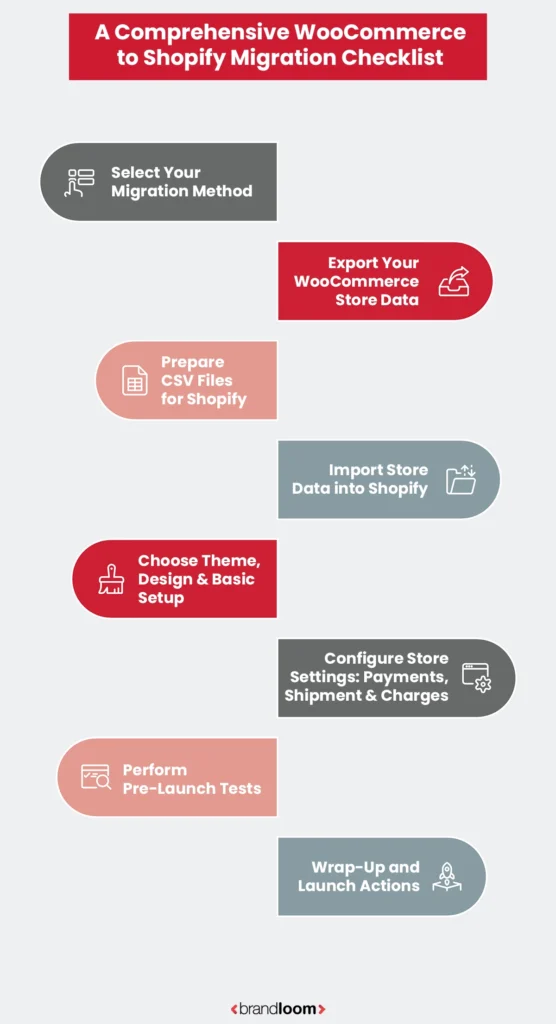
Choosing Your Migration Method
Before you begin exporting data, decide how you’ll migrate your web store from WooCommerce to Shopify. The options are:
- CSV Export + CSV Import (Manual) – Ideal for products and customers, and requires spreadsheet editing.
- Shopify Store Migration App – a built-in tool in the Shopify admin that simplifies product migration via CSV.
- Third-Party Tools (LitExtension, Cart2Cart) – Handles customers, orders, reviews, and more with mapping logic.
- Hire a Shopify Partner / Expert – Best for online stores with complex data, subscriptions, or custom needs.
- Manual Copy-Paste – Works for small catalogs or static pages only.
Exporting Your WooCommerce Data
Products & Categories
In the WooCommerce dashboard, choose Products > Export. Then select the columns and product categories, and export to a CSV. Save the export as WooProductDownload.csv. This file will be your primary source of product and category data for Shopify.
Customers
Use a WooCommerce export plugin to export customer accounts to CSV and save it as WooCustomerDownload.csv. This usually includes names, email addresses, physical addresses, and customer metadata.
Order History
WooCommerce does not export historical orders to Shopify by default. So, you can use third-party tools like Matrixify or Cart2Cart to export and map order records to Shopify.
Preparing CSV Files for Shopify
As Shopify uses specific CSV templates, you must edit exported files to match Shopify’s structure before the import. You should:
- Change WooCommerce column headings (Name → Title, Images → Image Src).
- Convert units where required (weight from pounds to grams).
- Ensure SKU, price, variants, descriptions, and inventory align correctly.
Shopify offers some downloadable CSV templates that you can use as the format blueprint. Also, use Google Sheets or Excel for convenience.
Importing Data into Shopify
Products
- In Shopify Admin, navigate to Products → Import.
- Upload WooProductDownload.csv and preview the upload before publishing.
- Then confirm and import products. After import, Shopify will list all products, published or hidden — based on your settings.
Customers
- Go to Customers → Import in Shopify admin.
- Upload the edited WooCustomerDownload.csv.
- Confirm import and validate customer data.
Shopify imports customer names, emails, and addresses, but excludes customer passwords. You must reset this after the first login.
Order Data & Customer Reviews
- Order History – Use third-party migration tools like Matrixify or LitExtension to import orders.
- Reviews – Export reviews through a plugin, then import using a Shopify reviews app (Loox, Judge.me, Yotpo).
These are optional but vital for brands dependent on historical sales and social proof.
Choosing Theme, Design & Essential Setup
After migrating from WooCommerce to Shopify, focus on developing the storefront. Here’s how:
- Choose an SEO-friendly, mobile-responsive theme from the Shopify Theme Store.
- Build menus and collection pages around your existing product categories.
- Customize your homepage, About, Contact, and policy pages.
- Group products into logical collections that reflect your previous category structure.
These steps ensure your new Shopify store remains visually consistent and intuitive for users.
Configuring Store Settings: Payments, Shipping & Taxes
Now, it’s time to configure financial settings, including:
- Set up Shopify Payments or add third-party providers.
- Add locations, zone rates, and package weights details for carrier-calculated shipping.
- Check tax settings per region. Shopify offers automatic calculation in several countries.
Performing Pre-Launch Testing
This is necessary to migrate WooCommerce to Shopify without losing SEO. You can:
- Create successful and failed transactions, refunds, partial fulfillments, etc.
- Check cart, shipping, payments, and policies workflow.
- Test publishing visibility and customer emails for all key processes.
Final Launch Process
- Connect or transfer your main domain to Shopify using proper DNS settings.
- Check if search engines can crawl your store post-launch.
- Run an in-depth final data analysis for all products, categories, inventory, and prices.
Following this WooCommerce-to-Shopify migration checklist is essential for operational readiness. You will be able to avoid platform migration mistakes. We at BrandLoom, a trusted e-commerce web development provider, offer guidance and are an agency with unmatched expertise in this domain.
Key SEO Considerations for Migration
To migrate from WooCommerce to Shopify successfully, you must improve the store’s SEO aspects. Without careful planning and execution, your search engine rankings and organic traffic may dip, hurting your revenue.
Here are the key SEO considerations:
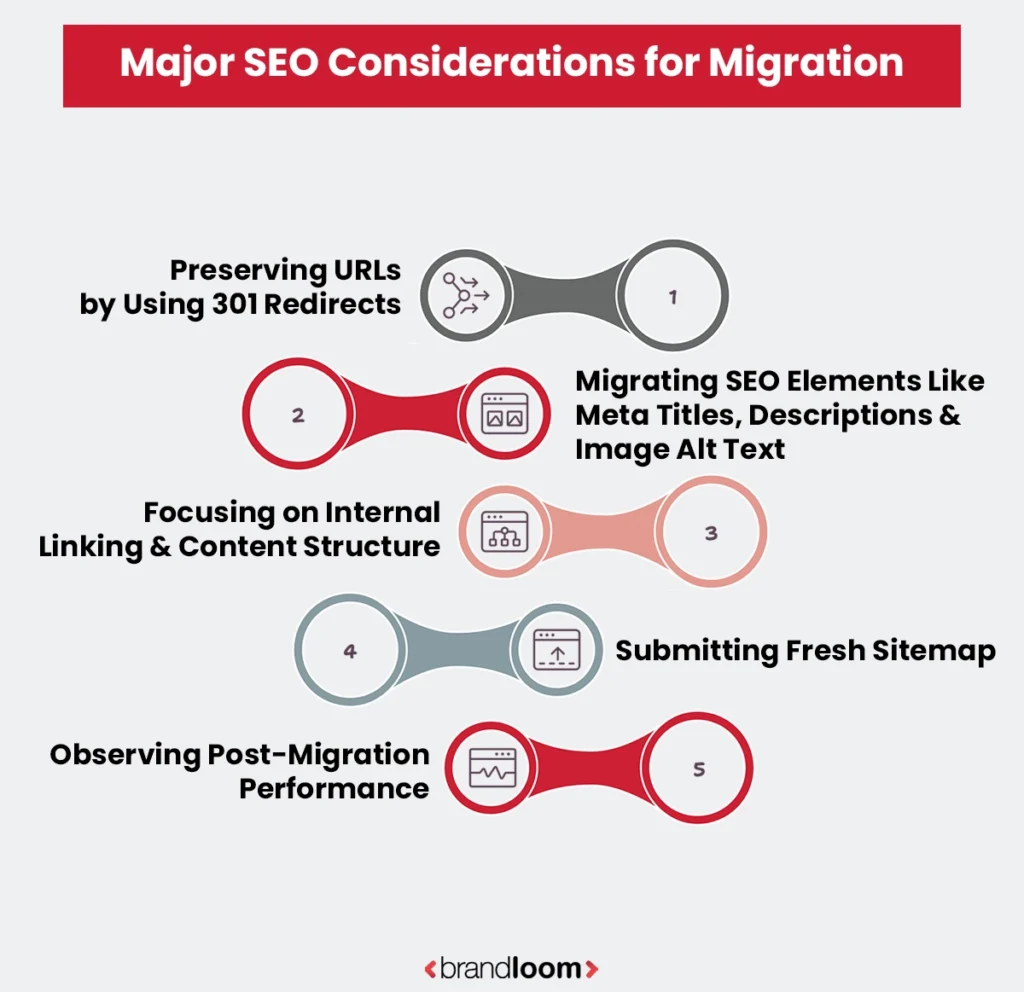
Preserving URLs with 301 Redirects
Changing your URL structure can break existing links and affect search engine rankings negatively. So, map all WooCommerce URLs, products, categories, blog posts, and pages to their Shopify versions. Use 301 redirects for each URL to maintain link equity. Using AI tools can be helpful to scan your WooCommerce store, identify URL patterns, and generate redirect maps.
Migrating Meta Titles, Descriptions & Image Alt Text
Export the relevant SEO data and check that all meta titles, meta descriptions, and image alt text remain accurate after migration. Use SEO auditing tools to identify missing or duplicate metadata. Also, verify that product pages and blog posts retain their essential on-page SEO elements.
Internal Linking & Content Structure
Analyze the internal links within products, categories, and blog posts. Use AI-powered site crawlers to automatically detect broken links and improve SEO prospects after the migration. Maintain a logical category hierarchy after migration.
Google Search Console & Sitemap Submission
Next, create a new XML sitemap for Shopify and submit it to Google Search Console. Look for crawl errors and indexing issues after migration. Once again, using AI SEO tools can be useful. Also, check that structured data (rich snippets) is correctly applied to products and blog posts.
Tracking Post-Migration Performance
After launching the Shopify store, you should observe traffic trends, rankings, and conversions. Monitor performance for 4-6 weeks post-launch. AI analytics platforms can identify unusual changes in keyword rankings, organic traffic, or conversion funnels caused by migration. Use these findings to correct redirect gaps, metadata issues, indexing problems, or page-structure errors.
AI SEO is a non-negotiable part of the WooCommerce to Shopify migration. To implement SEO during the migration effectively, consult the AI SEO experts of BrandLoom.
Common Mistakes to Avoid During WooCommerce to Shopify Migration
Even with a clear checklist and SEO plan, brands may face hurdles in eCommerce platform migration. It is better to become aware of the common migration mistakes, which becomes easier with the guidance and insights of veteran e-commerce web development partners.
Skipping Backups or Data Validation
Several online store owners feel the CSV export or migration software will handle everything automatically, but that may not happen. Not backing up products, categories, customer orders, and blog posts can increase the risk of data loss. Use AI-assisted validation tools to check for missing fields, duplicate SKUs, or inconsistent data before the migration.
Incomplete User and Order Migration
Overlooking customer accounts or historical orders can cost you later. It causes confusion and hassles for end users. Shopify doesn’t allow migration of user passwords for security reasons, and you must reset accounts.
Overlooking Redirects and URL Mapping
A big Shopify migration mistake brands make is missing the 301 redirects. Non-functional links for products, categories, or blog posts will bring down organic rankings. Use suitable tools to automatically map old URLs to new Shopify URLs and detect gaps.
Missing Blog Posts or Internal Links
Blog content often brings your site organic traffic. So, don’t overlook checking the internal links, category pages, or blog URLs. AI engine crawlers can automatically detect broken links after the migration and suggest updates.
Skipping QA Testing
Not checking payment gateways, shipping options, and coupon codes is a big mistake. Identifying and fixing errors in these areas ensures a smoother customer experience.
Post-Migration Verification & Optimization
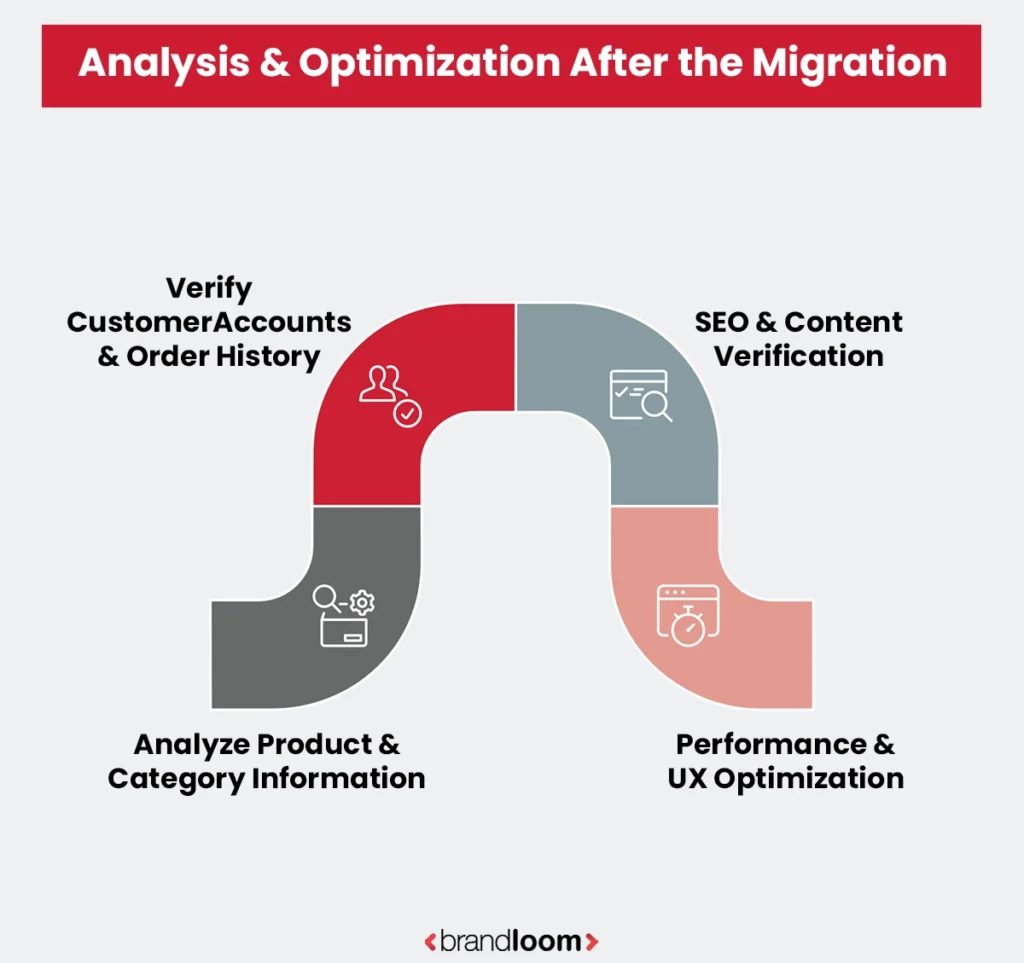
Completing the migration from WooCommerce to Shopify is half the job done. A fine-looking Shopify store may still contain data inconsistencies, broken links, or SEO loopholes. A post-migration verification ensures your WooCommerce data is converted properly. The Shopify store must be optimized for both customers and AI search engines.
Verify Product & Category Data
Check that products, SKUs, prices, and variants match your original WooCommerce store. The same applies to product categories.
Check Customer Accounts & Order History
Next, check the customer emails, addresses, and order history. Shopify will not carry over passwords. Verify sample orders to ensure payments, shipping calculations, and notifications work as expected.
SEO & Content Check
Confirm all 301 redirects are functional and watch for any broken links. Look into product and blog pages for meta titles, descriptions, and image alt text accuracy. Also, validate the sitemap in Google Search Console and watch for crawl errors.
Optimize Performance & UX
Check functional aspects like the store’s mobile responsiveness, page load times, and navigation. Also, ensure that elements like promotional banners, coupon codes, and collection filtering are working properly. Use AI-based analytics to monitor user behavior, bounce rates, and conversion funnels in the post-launch period.
Veteran AI SEO analysts can assist in post-migration verifications and tweaking. Rely on BrandLoom, an agency with proven expertise in assisting coveted Indian and offshore brands for SEO and website revamp needs.
Suggested Migration Timeline
A well-structured WooCommerce to Shopify migration should be done in well-defined phases to help lower data loss risks, preserve SEO, and ensure operational continuity. The timeline will vary based on factors like store size, complexity of layout, data quality, third-party apps, etc.
Phase 1: Pre-Migration Planning
In the first phase, you can audit the WooCommerce store, back up all data, select an apt Shopify plan and theme, and identify complex product types, apps, and subscription workflows. It may take 1-2 weeks.
Phase 2: Migration
Export products, customers, and optional order history from WooCommerce and import the data into Shopify using CSV files or migration apps. Then, set up collections, site navigation, and Shopify apps. It may take up to 3 days. You will also have to conduct initial QA testing on products, pricing, and customer accounts.
Phase 3: Post-Migration Verification & SEO Analysis
Test the checkout flow, payments, and shipment carefully. Then you can validate nuances like redirects, meta titles, descriptions, and internal links. After these, submit the sitemap in Google Search Console and monitor for crawling errors. You may need up to 1 week for these.
For businesses planning a WooCommerce-to-Shopify migration, BrandLoom provides e-commerce development and SEO support across migration planning, data transfer, URL mapping, technical checks, and post-launch monitoring. Speak with the BrandLoom team.
Conclusion
WooCommerce-to-Shopify migration is not a technical transition; it is more of a strategic transformation. When planned and executed right, it retains your SEO, ensures data integrity, and enhances the shopping experience. Poor, rushed execution leads to broken links, lower traffic, and irate customers.
Focusing on SEO, avoiding common Shopify migration mistakes, and following a step-by-step checklist help you accomplish this transition successfully. Much of the checking and optimization can be handled by apt AI tools, reducing the risk of delays and errors.
For a hassle-free, SEO-safe migration from WooCommerce to Shopify, you need the expertise and guidance of a veteran AISEO and e-commerce development service provider. Contact the experts at BrandLoom, an award-winning digital marketing agency with a growing clientele in India and abroad.
FAQs
For Migrating from WooCommerce to Shopify, you must use a structured approach. First, audit your WooCommerce store and back up the products, categories, customer accounts, order history, and blog posts via CSV files. Then, set up the Shopify store, pick the right plan, and select an SEO-friendly theme. Import products, customers, and optional order history into Shopify using CSV files or a third-party app. Next, set up payment gateways, shipping, and apps, then test your checkout flow and order processes. Finally, check all data, run QA checks, and launch the site. Using AI tools helps you speed up the process and reduce errors.
Yes, you can migrate from WooCommerce to Shopify without losing SEO. However, proper planning is crucial for the switchover. Begin by mapping all WooCommerce URLs to their Shopify equivalents, then use 301 redirects to maintain link equity. Also, check that all meta titles, descriptions, image alt text, and structured data remain unchanged. Next, update internal links and submit the new sitemap to Google Search Console. Use AI-powered SEO tools to identify and resolve SEO issues at each stage. These also help in monitoring organic traffic during and after migration.
The WooCommerce-to-Shopify migration checklist is your step-by-step guide to making the platform transition smooth and hassle-free. When you follow such a comprehensive eCommerce platform migration guide carefully, you don’t lose products, customers, orders, or SEO value. The checklist comprises several steps, including auditing your WooCommerce store, backing up site data, and selecting the right Shopify plan and theme. It also spans importing data, configuring payment and shipment details, and running QA tests.
During a WooCommerce-to-Shopify migration, you can transfer products, categories, variants, costs, inventory levels, customer details, order history, and blog content. Reviews, images, metadata, meta titles, meta descriptions, and image alt text may also be transferred using compatible migration tools or apps.
Saved payment information is generally not migrated due to security and payment provider restrictions. Customer passwords cannot be transferred, so customers must activate their accounts or create new passwords after migration.
The duration of a WooCommerce-to-Shopify migration varies based on the store’s size and design complexity. For a small Shopify store without any complex configuration needs, you may need 2-3 days. More time may be needed for SEO validation, redirect mapping, and QA testing. The expert guidance at BrandLoom for veteran e-commerce web development can help avoid migration delays.
Common Shopify migration mistakes can affect SEO, customer experience, and revenue. These include skipping backups or data validation, and missing 301 redirects for products, categories, or blog posts. Some brands also fail to import customer accounts or order history correctly.
Yes, 301 redirects are vital when you convert an online store from WooCommerce to Shopify. Each product, category, and blog post URL that changes must be redirected to its new Shopify version. Without it, you risk losing organic search traffic, page authority, and SEO value. Properly configured redirects maintain link equity, and search engines and end users can find the desired pages. This step is crucial to preserving rankings and avoiding sudden drops in traffic.
You need a strategic approach to preserve SEO rankings during the migration. Start by mapping all old WooCommerce URLs to new Shopify URLs and implementing 301 redirects. Next, you should check that SEO elements like meta titles, descriptions, image alt text, and structured data are preserved. Also, maintaining internal linking across products, categories, and blog posts is a must. Submit the new sitemap to Google Search Console, too. With careful planning, proper redirects, and AI-assisted verification, your new Shopify store can retain search engine visibility and traffic.
Whether Shopify is better than WooCommerce will depend on your business needs. Shopify is a fully hosted, scalable platform with great built-in security, fast performance, and a streamlined admin experience. D2C brands and store owners seeking simplicity and reliability love the platform. WooCommerce offers self-hosting and more customization choices. But you will need technical acumen and plugin maintenance to utilize it. Think of store size, technical expertise, and long-term scalability to make the choice between these platforms.
Hiring a Shopify expert is useful when your online store is large, complex, or SEO-dependent. It may be useful when you want a smooth WooCommerce-to-Shopify migration without degrading SEO. Expert entities can manage data migration, URL mapping, SEO preservation, and theme customization. Even for smaller stores, nuanced and professional guidance can save time and prevent costly errors. We at BrandLoom, a veteran e-commerce development agency with a decade-long track record, can be really helpful for a smooth e-commerce platform migration.