In today’s digital ecosystem, having your location visible in Google Maps is really important; it can make or break your business visibility. Whether you are a local coffee shop or just want to highlight significant locations for personal use, knowing how to add locations to Google Maps is a must-have skill in the digital space.
Google Maps is used by more than 1 billion people every month, making it the world’s most popular online mapping service. For customers searching for nearby businesses, Google Maps is often their first point of engagement. If you want your business to become a community hub and stand out in local search results, our local SEO experts at BrandLoom can help ensure that your business gets the visibility it deserves.
This blog will guide you through the process of adding your location on Google Maps so you can attract more customers and enhance your online presence.
What is Google Maps
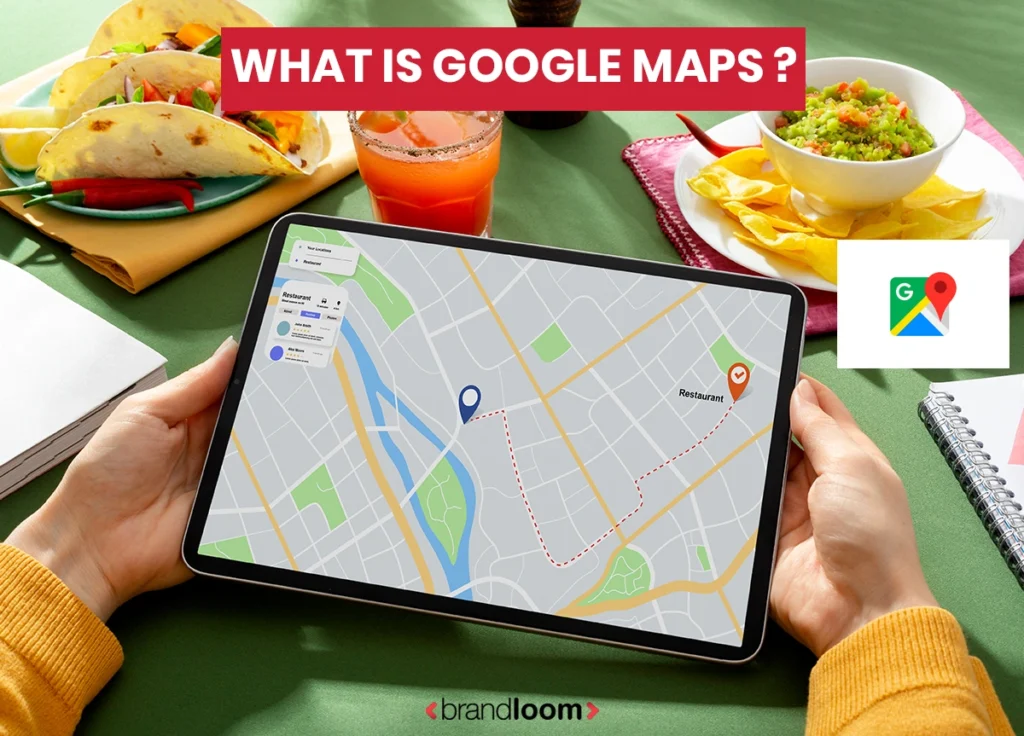
Google Maps is a web mapping service developed by Google. Launched in 2005, it has evolved from a simple mapping tool into a sophisticated ecosystem that connects businesses with customers worldwide.
Core Features and Functionality
Mapping and Navigation Services: Google Maps includes detailed street maps with satellite or aerial views and street views, allowing a view of any place in the world. The platform offers turn-by-turn navigation for driving, walking, cycling, and public transportation, making it an essential tool for daily navigation needs.
Business Discovery Platform: Besides navigation, Google Maps stands out as a powerful discovery engine for businesses. A user might look for restaurants, stores, or services based on location, rating, hours, or other criteria.
Local Search Integration: Google Maps is integrated with Google Search, so businesses are listed on both in traditional search results and map results. This twin rendering boosts the chance of customer discovery and engagement.
Review and Rating System: A customer can rate any business on the platform, leave comments and detailed feedback, and upload photos. These reviews directly influence local search.
How Google Maps Works for Businesses
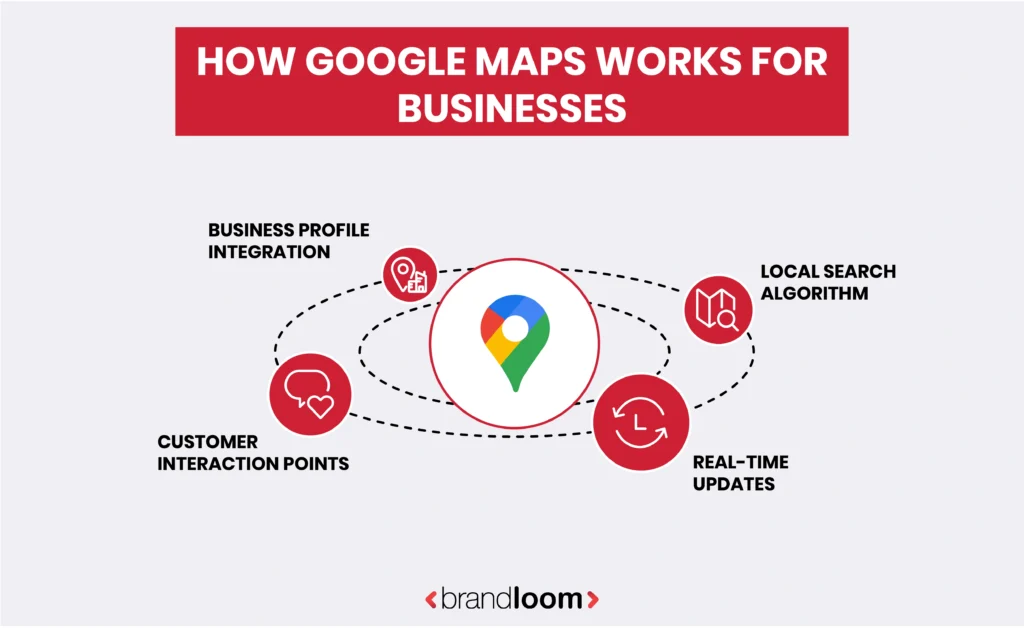
1. Business Profile Integration
Each business that shows up in Google Maps is connected to a Google Business Profile (previously, Google My Business). This profile serves as a centralized command center for the company’s online reality. Owners can also add or update key information such as the address, phone number, website, business hours, photos, and more. They can also monitor customer reviews on this dashboard. Maintain an accurate and complete profile so customers can discover the business and trust it easily.
2. Local Search Algorithm
Google Maps is essentially powered by algorithms that decide which businesses to show in local search results. Factors include location proximity, business relevance to the search query, and the prominence of the business (influenced by reviews, online mentions, and overall digital presence).
3. Customer Interaction Points
Google Maps gives consumers a multitude of ways to interact with businesses: calling them, visiting their website, requesting directions, seeing photos, reading reviews, and even sending messages to businesses. Each event is a data point about the consumer’s behavior and preference.
4. Real-Time Updates
Google Maps constantly updates business listings in real time. Owners can update their business hours, add special announcements, upload new photos, or respond to recent reviews. Customers also help keep information current by suggesting edits or posting updates. This live nature of Google Maps ensures that anyone searching for your business sees the most accurate and up-to-date information available.
The Google Maps Ecosystem
Integration with Other Google Services: Google Maps is integrated with Gmail, Google Calendar, Google Search, Google Ads, and other Google services. This allows for business information to display uniformly across all Google platforms, resulting in increased exposure and reach.
Third-Party Applications: Many websites and apps use the Google Maps API for extended visibility outside the Google domain. It is common to see Google Maps embedded in restaurant websites, real estate websites, and service-based business directories as well.
Data Collection and Analysis: Google Maps gathers substantial information about user activity, searches, and business engagements. This data can be found by business owners within Google My Business insights to help them understand consumer activity and promote their local marketing strategy.
Understanding Different Ways to Add Locations in Google Maps
Google Maps provides a variety of ways to add a location that have different implications. Let’s explore each
Method 1: Adding Your Business Location Through Google My Business
The easiest and best way to add a business location is through Google My Business (formerly Google Business Profile). This is the method with the best possibilities.
Step-by-Step Process for Business Owners:
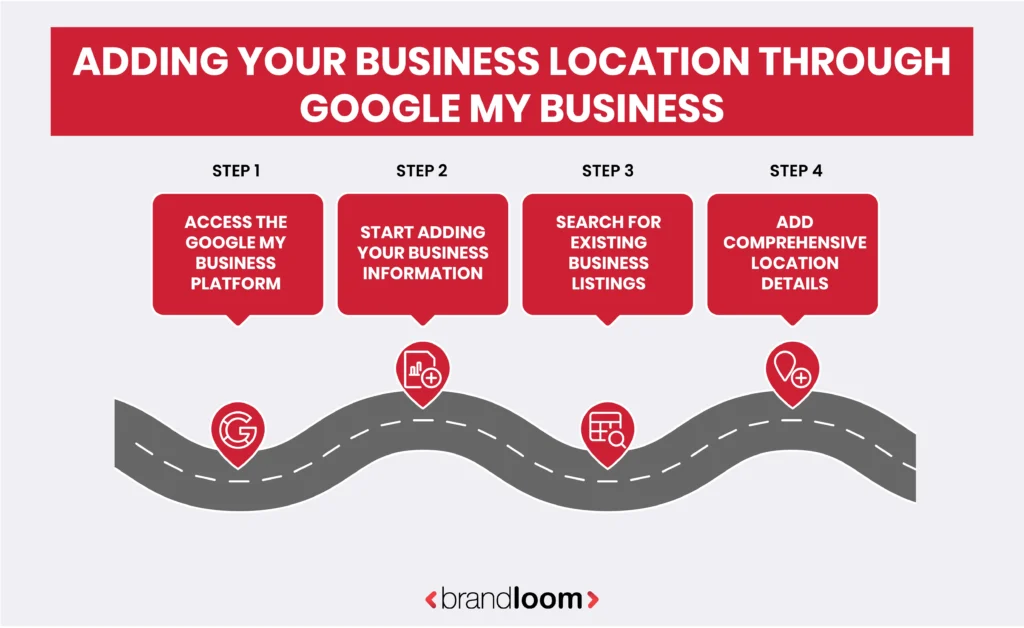
Step 1: Access Google My Business Platform
Visit business.google.com or search “Google My Business” in your browser. It’s from here that all the business listings in Google Maps are centrally managed. Sign in using your Google account, or click Create account if you don’t have one already. The Google account will be the login, which you’ll use to manage your business listing, so make sure to use an email address that multiple people within your organization can access.
When creating a new Google account for business use, consider using a dedicated business email address rather than a personal Gmail account. This approach provides better long-term management flexibility and maintains professional separation between personal and business Google services.
Step 2: Start Adding Your Business Information
Click “Add your business to Google” or “Manage now” if you already have an account. The system will bring up a search box requesting your business name, and Google will search through its current database to see if your business already has a listing. Before you begin to gather all the information about your business, including legal business name, physical address, primary phone number, website URL, and business category.
Step 3: Search for Existing Business Listings
Enter your business name exactly as you want it to appear in search results. Google
will then search its own vast database to check if you already have an existing business.
If it is there, you can save time by claiming the existing business rather than creating a
duplicate one. If you don’t find your business in the search results, you can add your
business to Google to create a completely new listing.
Step 4: Add Comprehensive Location Details
Enter your complete business address with precision, ensuring it exactly matches your
official business address as it appears on legal documents and other online directories.
Include street number and name, city, state, ZIP code, and country, as address accuracy
is crucial for verification, search visibility, and customer navigation.
Method 2: Adding Missing Places Through the Google Maps Mobile App
If a landmark or business has not been entered on the map, you can add it using your mobile phone. Here’s how to add locations to Google Maps via the mobile application:
For Android Users:
Step 1: Open the App for Google Maps
Launch the app and sign in with your Google account. Make sure the internet connection is working properly. The approval chances increase if one is near the concerned location.
Step 2: Move to the Exact Location
Navigate through the search bar or browse through the map manually. Tap ‘Contribute’ at the bottom and then ‘Add Place,’ or long-press the map where the location should be.
Step 3: Select “Add a Place.”
In the Contribute menu, choose Add a Place. Google encourages verified user input to keep Maps accurate.
Step 4: Set the Location Pin
Zoom in and move the pin away from entrances or visible markers to the exact location.
Step 5: Enter All Key Details
Fill in the business name, category, full address, contact number, website, and operating hours. Adding photos can improve your submission’s success.
Step 6: Submit and Track
Tap Send to submit. All added places are reviewed for accuracy. You can keep track of your submissions from within the app under Your Contribution.
For iPhone Users:
The process remains similar on iOS devices. Open Google Maps, navigate to the location, tap “Suggest an edit” or look for contribute options, then follow the prompts to add the missing place.
Method 3: Using Google My Maps for Custom Locations
Google My Maps enables you to create your own maps with multiple locations marked, perfect for businesses, events, or just making trip plans.
Step 1: Access Google My Maps
Visit mymaps.google.com and log in with your Google account. Click “Create a New Map.”
Step 2: Add Custom Locations
Select the “Add marker” tool and drop markers on the map. You can enter an address, manually click on a map, or upload a spreadsheet of your locations. For points, add names, descriptions, contact info, and images.
Step 3: Customize Each Marker
Add colorful and custom icons to differentiate your places. You can add descriptions and photos to make the map more descriptive and visually appealing.
Step 4: Share and Manage Access
Choose how to share your map: keep it private, send it to specific people, or embed it on your website. You can control who can view or edit the map at any time.
Method 4: Adding Locations for Developers (Using Maps API)
If you would like to show your business location on your website, the Google Maps JavaScript API enables you to create and manage custom maps.
Step 1: Get an API Key
Visit the Google Cloud Console to create a new project, activate the Maps JavaScript API, and request your API key.
Step 2: Set Up Your Webpage
Create a webpage and insert a container (like a div) where the map will appear. Ensure it has enough height and width for display.
Step 3: Initialize the Map
Create a map centered at where you want it and put a marker on it with JavaScript. Zoom level, title, and other things are configurable.
Step 4: Load the API
Add the Google Maps API script link to your webpage. Make sure the script includes your API key and references the function that initializes the map.
This method is best for developers who want full control over map design, markers, interactivity, and layout within websites or apps.
Best Practices for Adding Locations Successfully
When it comes to getting your business noticed online, Google Maps is an essential tool. Not only does it help potential customers find your location, but it also plays a crucial role in driving traffic to your website and generating leads. However, to maximize the effectiveness of your Google Maps listing, it’s important to follow best practices that ensure your business appears in the right searches and attracts the right customers. Some of them are as follows:
Accuracy is Everything
- Always verify the physical location before submitting your location.
- Ensure the phone number given is correct so that no confusion arises for the customer.
- Business hours should be accurate and up-to-date.
- Make sure you list an active and accurate website URL.
- Select the closest business category as per Google’s list.
- Incorrect information may always lead to negative reviews, but it may also lead to the removal of your listing by Google.
Choose the Right Category
- Choose the most specific category indicating the type of business you own.
- Use one primary category, along with relevant secondary categories if possible, to best describe your business.
- Check out your competitors’ categories for inspiration.
- Categorizing your business in a way that customers are searching
- The right category choice improves your ranking in Google Maps results.
Optimize Your Business Description
When adding your business, craft a compelling description that includes
- What services do you provide
- What makes you unique
- Key areas you serve
- Critical keywords are well-integrated and naturally
For instance, “BrandLoom” is a full-service marketing company specializing in digital marketing, brand development, and local SEO services. We help businesses across [your service area] grow their online presence and attract more customers through strategic marketing solutions.
Add High-Quality Photos
Visual content significantly impacts how customers perceive your business.
- Add professional exterior and interior photos of your property.
- Features of team photos to increase trust and credibility.
- Display products or services visually, if possible.
- Better visuals help your listing stand out on Google Maps.
- Listings with good photos get more engagement and traffic.
High-quality photos increase customer engagement and make your listing more attractive than competitors with poor or no images.
Taking time to follow these best practices will ensure that your location on Google Maps is not just visible but also trusted, informative, and appealing for potential customers. When you finally understand how to add location in Google Maps the right way and adhere to these tips consistently, you will be placing your business on the map for long-term local visibility and growth.
Common Google Maps Listing Mistakes to Avoid
Adding your business to Google Maps is key to visibility, but common mistakes like inconsistent information and unverified listings can hurt your ranking. Here’s how to avoid these pitfalls for a stronger online presence.
Using Inconsistent NAP Information
Taking control of your profile on Google Maps is not possible unless you keep the NAP on the same page. NAP, in short, stands for name, address, and phone number. Your information needs to be the same across platforms, whether that be on Google Maps, your business’s website, social media profiles, or any online directory. If these details are not consistent, even across minor variations (or if they diverge on any level among platforms), it can lead to confusion for Google algorithms and potential customers when they’re searching for your business. The solution is creating a master document containing your official business information and referring to it every time you update any online listing to ensure perfect consistency.
Ignoring Verification Requirements
Verification is one of those critical processes that lots of businesses forget to complete, to their ultimate frustration. Just because you have added your Google My Business location to Google Maps doesn’t mean you’ve finished the process; you must verify your listing all the way until it appears in search results. A lot of business owners put in their information and think they’re done, but the unverified listing will still be “hidden” from potential customers. Google normally ships verification postcards in 2 weeks, and it is VITAL that you look out for these and verify straight away when they arrive. If you still haven’t received the postcard after two weeks have passed, there’s no need to wait any longer; you should request a new verification code via your GMB dashboard so as not to postpone the process any further.
Choosing Incorrect Business Hours
Customers who show up when you’re closed due to inaccurate hours are left feeling annoyed and may leave you a negative review or not return. When that happens, make it a priority to update your hours as soon as possible, including holiday hours, seasonal schedule changes, temporary closures, and special event hours that might differ from your normal schedule.
Keyword Stuffing in Business Names
Although it might be tempting to stuff keywords into your business name, Google strictly forbids it. Enter your business legal name (this is the business legal name for the case, as defined by the authorized official’s signature on the most recent application) as it appears on official documents. Naturally include keywords in your business description instead, where they can help customers understand what you offer.
Neglecting Regular Updates
Google Maps listings require ongoing maintenance to stay visible and relevant. Regular updates show Google that your business is active and current. Schedule monthly reviews to update business hours if needed, add new photos, respond to recent reviews, update contact information, and refresh your business description. This consistent attention keeps information accurate and signals to Google that your business deserves better visibility in local search results.
Conclusion
Learning how to add a location in Google Maps is not just a technical step; it’s a strategic step towards the visibility and growth of your business. It doesn’t matter if you run an independent retail store or a multi-location business; a properly optimized Google Maps listing can help customers find you easier, place trust in your brand, and interact with your services.
In a competitive market, your presence on Google Maps can be the difference between a missed opportunity and a loyal customer. This online exposure not only helps your local SEO but also builds your brand’s authority. However, simply adding a location isn’t enough; consistent updates, customer review management, and ongoing optimization are what make your listing perform.
That’s where BrandLoom steps in. As a digital marketing agency, we help businesses add a location to Google Maps, optimize it for search, and manage it for sustained results. From selecting the right categories to building a compelling presence with visuals and reviews, BrandLoom ensures your Google Maps listing becomes a powerful marketing tool.
Frequently Asked Questions
To add your business location to Google Maps, open the Google Maps app or website. Use the “Add a missing place” option to submit your business details like name, address, category, and contact info. Google will review your submission and publish it once approved. This process is simple, but accuracy is key.
At BrandLoom, we help businesses ensure every detail is correctly submitted to avoid delays or rejections. Knowing how to add a location in Google Maps effectively boosts your visibility and helps potential customers find you easily. Our team can also help you optimize your listing with the right categories, photos, and keywords to drive real results from your local searches.
Yes, you can add a place on Google Maps even if you’re not the business owner. Use the “Add a missing place” option in Google Maps to submit the business name, location, and other details. However, only the business owner or an authorized person can claim and manage the business profile later.
At BrandLoom, we guide business owners through both adding and claiming their listings. Even if you’re helping someone else, it’s important to submit accurate data. If you’re unsure how to add a location in Google Maps correctly, our team ensures the submission is verified and fully optimized to appear in search results, even for multi-location brands.
Business location on Google Maps can be added once you fill in the business name, street address, type of establishment (restaurant, store, salon), phone number, website, opening time, and all the photos you care to upload. Accurate and complete information is key for correct location display and high ranking in local searches.
BrandLoom organizes and optimizes such information for the benefit of the business on Google Maps. Faster approval and increased customer engagement come to those who already know how to add a location in Google Maps.
After you submit a location to Google Maps, it typically takes anywhere from a few hours to several days for the listing to appear publicly. Google manually reviews each submission to confirm the information is accurate and that the place exists. If your submission includes complete and correct details, such as the business name, address, category, and contact information, the approval process is usually quicker. However, listings with missing, incorrect, or misleading information may face delays or even rejection. Keep in mind that Google also factors in user contributions, local guidelines, and verification trust levels when processing new locations. Patience and accuracy are key to getting listed efficiently.
Once your business appears on Google Maps, you can claim it using your Google Business Profile. Start by searching for your business name on Google Maps or Google Search. If it hasn’t been claimed yet, you’ll see the option “Own this business?” Click on it.
Follow the steps to verify ownership. Depending on your business type and location, Google may offer verification methods such as postcard by mail, phone call, email, or instant verification if you’re already managing other verified businesses. Once verified, you’ll gain full access to manage your profile, including updating business details, adding photos, posting updates, and responding to customer reviews. This helps maintain accuracy and boosts trust.
Yes, once your business is added and verified on Google Maps, you can edit or update your information anytime through your Google Business Profile dashboard. You can modify your address, phone number, business hours, website, photos, services, and more.
Keeping your business details accurate and up to date ensures that potential customers receive correct information, which improves their experience and builds trust. It’s especially important to update your profile during holidays, temporary closures, relocations, or when launching new services. Regular updates also help your business appear more active and relevant in local search results, making it easier for customers to discover and choose your services.
Your newly added location not appearing on Google Maps after a couple of days does require you to sit back and review your own submission once more to ensure its accuracy and completeness. Check that all the information given is correct, like business name, address, category, and what-have-you.
Sometimes things get held up because of missing information, picking the wrong category, or breaching Google listing policies. Also, find out if the location has actually been verified. If all looks right but your listing is still invisible, try placing it again. Logging the problem through Google Maps support. Patience is important, but proactive troubleshooting often speeds up the listing’s approval and visibility.
If you run a business without a storefront (like delivery or home services), you can still add a location on Google Maps by selecting “service-area business” in your Google Business Profile. You can hide your address and set specific cities or zip codes you serve.
At BrandLoom, we help service-based businesses configure this properly so they rank for relevant local searches. We also optimize your profile with targeted keywords and service areas. Learning how to add location in Google Maps for such businesses ensures you appear where your customers are, even if you don’t have a physical store.
Yes, if your business has multiple locations, you can absolutely add each one to Google Maps. You can do this manually by adding each location individually, or, if you manage ten or more, use the bulk upload feature through your Google Business Profile.
Each location must have accurate and unique information, including its address, phone number, hours, and categories. Maintaining consistency across all listings is essential for a strong brand presence and better local SEO. After adding them, each location must go through the verification process. Managing multiple listings also allows you to monitor performance and customer engagement across different areas efficiently.